An equaliser for iPhone, with correction for your headphones
Discata has an equaliser (equalizer) for the music you play in it. It shapes the sound in three layers: correction for your headphones, tone, and loudness. All processing happens on the iPhone.
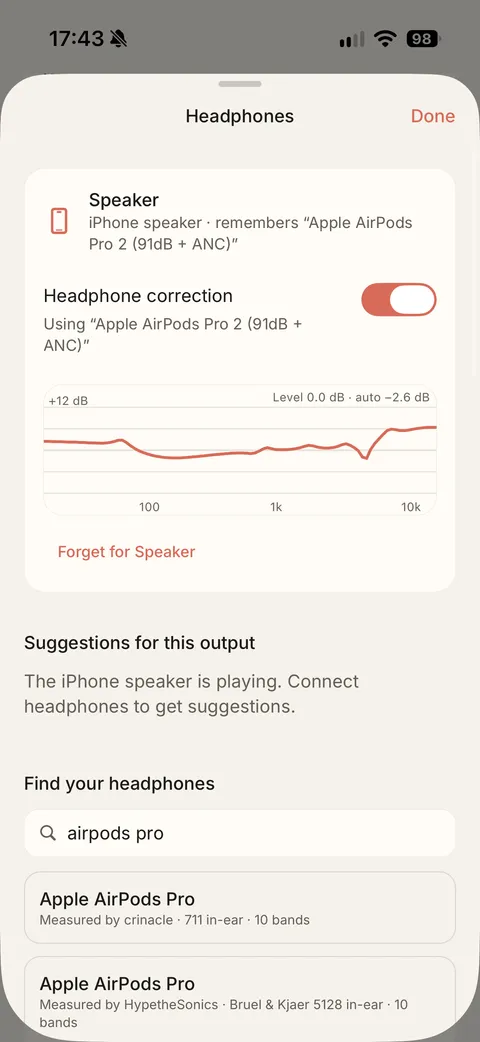
Layer 1: headphone correction
Headphone correction removes your model’s own colouring, so everything else sounds as intended. It is the biggest single improvement for most people.
Discata has 8,849 correction profiles from the open AutoEq project. Search by headphone model and pick yours. Discata remembers your choice for each output.
In the app: Sound › Headphones
Layer 2: tone
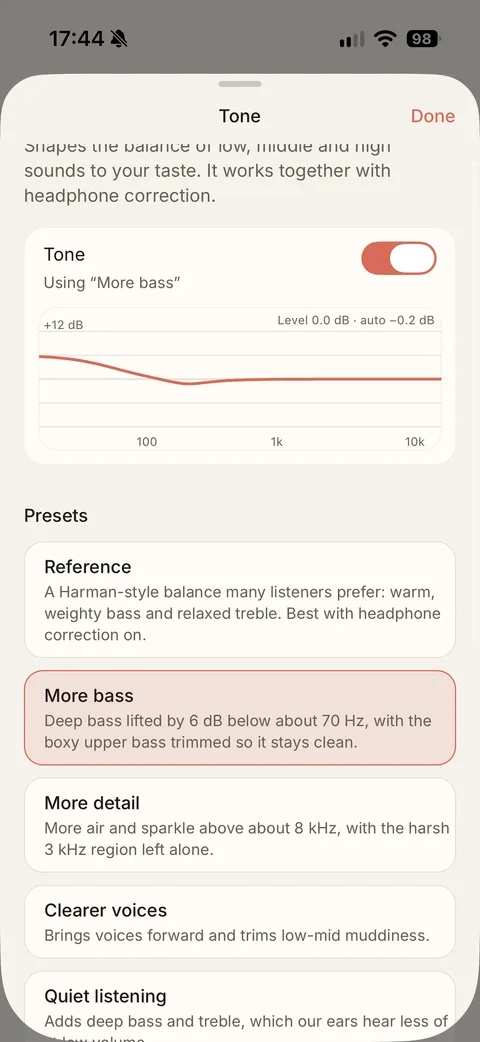
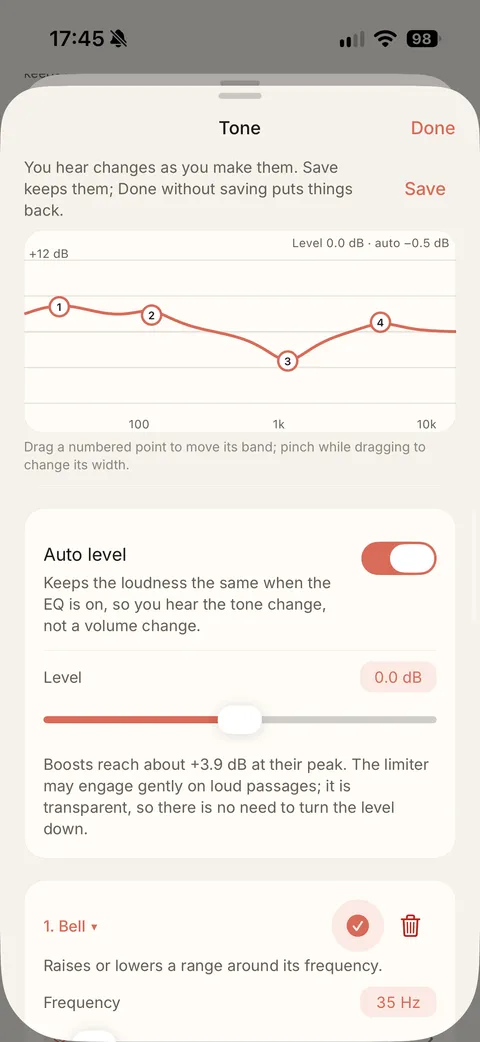
Use a 10-band graphic EQ for quick changes, or a parametric EQ with up to 32 bands. In the parametric EQ you drag points on the curve and hear the change as you make it. Nine one-tap sound styles give you a place to start: Balanced, Reference, Bass, Treble, Immersive, Speakers, Vocals, Chill and Orbit. All of them stay adjustable. Each preset comes with a short description in plain words, so you know what it does before you pick it.
In the app: Sound › Tone › edit a profile (drag the points on the graph)
Layer 3: level and comparison
It keeps the loudness the same when you change the EQ, so a boost does not just sound “better” for being louder. Use Level only to fine-tune.
Choose a style or a room, then flip Sound On / Original while the song plays. Both play at the same loudness, so you judge the sound, not the volume.
EQ in plain words
Six regions of the sound, from the guide built into the app.
| Region | Range | What it does |
|---|---|---|
| Sub-bass | 20–60 Hz | Felt more than heard: the rumble of a kick drum or synth bass. Too much makes headphones strain and distort. |
| Bass | 60–250 Hz | Warmth and punch. A lift around 60–100 Hz adds weight; lifting 150–250 Hz quickly sounds boomy. |
| Low mids | 250–500 Hz | The “mud” and “boxy” region. A small cut of 1–3 dB here often makes music clearer than any boost elsewhere. |
| Mids | 500 Hz–2 kHz | The body of voices, guitars and piano. Cut too much and music sounds hollow. |
| Presence | 2–5 kHz | Brings voices and snares forward. Our ears are most sensitive here: too much sounds harsh and tiring. |
| Treble and air | 5–20 kHz | Detail, cymbals and space. Harsh “s” sounds (sibilance) live around 5–8 kHz; the “air” above 10 kHz is subtle. |
Cut before you boost
Removing a little of what is too much is cleaner than adding more of everything else. Move in small steps of 1–3 dB, use wide bands (low Q) for tone and narrow ones only to fix a single problem.
When it sounds wrong
Muddy or boomy
Turn on Clean bass, lower the room amount, or cut 250–400 Hz by 2 dB. A wrong headphone model can also add bass: check Sound › Headphones.
Harsh or tiring
Try the “Less harsh” preset, or cut 3–5 kHz by 2 dB. Loudness normalisation also helps with very loud masters.
AirPods and other headphones
Discata works with any headphones, including AirPods, for music played in Discata. It does not change the sound of other apps.
The listening guide goes through each setting in more detail.
Try it with your headphones
Find your headphone model, then flip Sound On / Original to hear the difference.
Download on theApp StoreFree on iPhone. Requires iOS 17 or later. No account.